
Overview
LDAP Oracle requires OID for connections with LDAP and Java; hence, certain criteria need to be satisfied. LDAP (Lightweight Directory Access Protocol) refers to the protocols employed in accessing and managing directories via the network. The Oracle Internet Directory (OID) is an LDAP server from Oracle, which utilizes Oracle Database. It plays a crucial role within the Oracle Identity Management suite of products. In the event that Oracle Database is accessed with LDAP, OID acts as a directory mapping service name to database descriptor.
Need LDAP SERVER or ORACLE LDAP SERVER
As per the industrial standards, LDAP Servers, such as the Oracle LDAP (OID) might be pre-installed in order to handle identity management. If it is a new deployment, one will require either an OpenLDAP Server with Oracle OID schema files or Oracle Internet Directory. The configuration of the below example is performed with an OpenLDAP Server that was augmented using Oracle OID Schema LDIF files. Below is the error message that would be displayed if the connection is attempted without configuring anything.
Caused by: oracle.net.ns.NetException: JNDI Package failure javax.naming.NameNotFoundException: [LDAP: error code 32 – No Such Object]; remaining name ‘cn=oracle-context,dc=test,dc=com’
Root cause
In this scenario, it’s attempting to find the existing object within the directory hierarchy, but it cannot find it, hence it’s better to verify the actual name of the object. If there are any typos in the entry, please correct it accordingly to provide the correct object name. As per the LDAP protocol, error code 32 represents “No such object,” which states that the DN being searched for is not found in the directory because it does not exist. In this scenario, the Oracle JDBC driver is attempting to search for cn=oracle-context from the base DN; however, it doesn’t exist because the schema of the Oracle OID is not loaded in the LDAP server.
While troubleshooting this problem, it was observed that orclNetDescString is blank. Due to this, there is no possible way in which connection between Oracle and LDAP can be established. An OID schema is required. OrclNetDescString is an attribute provided by Oracle that has TNS connect string for the database service. OrclNetDescString attribute is absent since there is no OID schema present at the LDAP server side. It should be noted that OID schema is necessary since LDAP must know about proprietary Oracle objects/attributes.
Solution
Ensure that you download the LDIF files as described below; LDIF files help link the Oracle LDAP authentication process. This is a simple plain text format representing directory entry objects. In Oracle, there are three specific files which contain definition of the object class including attributes for LDAP authentication. These files help ensure that Oracle specific attribute values such as “orclNetDescString,” “orclNetService” and “oracle-context” get inserted into your LDAP server schema. This is important in creating a JDBC database connection using LDAP.
1. Create a folder and copy those LDIF files to that location
- oidbase.ldif
- oidnet.ldif
- oidrdbms.ldif
2. Add the above files to the LDAP server
- ldapadd -Y EXTERNAL -H ldapi:/// -f /etc/openldap/oracle-ldap/oidbase.ldif
- ldapadd -Y EXTERNAL -H ldapi:/// -f /etc/openldap/oracle-ldap/oidnet.ldif
- ldapadd -Y EXTERNAL -H ldapi:/// -f /etc/openldap/oracle-ldap/oidrdbms.ldif
3. Create the /etc/openldap/testdb.ldif file and paste the below lines
					dn: cn=testdb,dc=itfits,dc=biz

objectclass: top

objectclass: orclNetService

cn: testdb

orclNetDescString: (DESCRIPTION=(ADDRESS=(PROTOCOL=TCP)(HOST=hostname)(PORT=1521))(CONNECT_DATA=(SERVICE_NAME=testdb)))
4. Build the structure of the directory service
- ldapadd -x -W -D "cn=Manager,dc=test,dc=com" -f testdb.ldif
Oracle server
1. Oracle server-side changes are required. Follow the steps below
The LDAP Server is now up and running to serve our Oracle. However, the Oracle might not be configured to access an LDAP server; hence, some effort should be put into configuring it. This is an essential procedure, which most people tend to ignore. Even if the LDAP server has been perfectly set up, the Oracle database client (or the JDBC Thin driver) will need to be informed on how to locate the LDAP server and make use of it for name resolution. This is done through a specially created configuration file named ldap.ora. Consider this file similar to the DNS resolver config file used by other clients like Apache Tomcat; it informs Oracle’s networking layer on which LDAP server it has to contact in order to resolve a service name and what the default naming context (base DN) should be. The “$ORACLE_HOME/network/admin/ldap.ora” file should be created, with the following configuration:
Note: If you don’t have the ldap.ora file, then create a new ldap.ora file under this $ORACLE_HOME/network/admin/ldap.ora
# ldap.ora
# Place this file in the network/admin subdirectory or your
# $ORACLE_HOME location.
DIRECTORY_SERVERS = (:389:636)
DEFAULT_ADMIN_CONTEXT = “dc=test,dc=com”
DIRECTORY_SERVER_TYPE = OID
Once completed with all steps, just restart the Oracle server and LDAP server, just for safety purposes.
Lastly, configure the LDAP JDBC URL to point to Oracle. The time to shine for your work arrives here. In place of the standard JDBC URL where you explicitly specify a hostname and port number for your database, you create an LDAP-style URL, which instructs the Oracle JDBC Thin driver to find the database service using information stored in the LDAP store. With this step, your application becomes independent of the actual database server address and port – all changes can be made within the LDAP server without requiring reconfiguration of your application deployment.
jdbc:oracle:thin:@ldap://:389/cn=testdb,dc=test,dc=com
2. Use any third-party tool to connect to the Oracle LDAP connection. Here we are using Oracle SQL Server
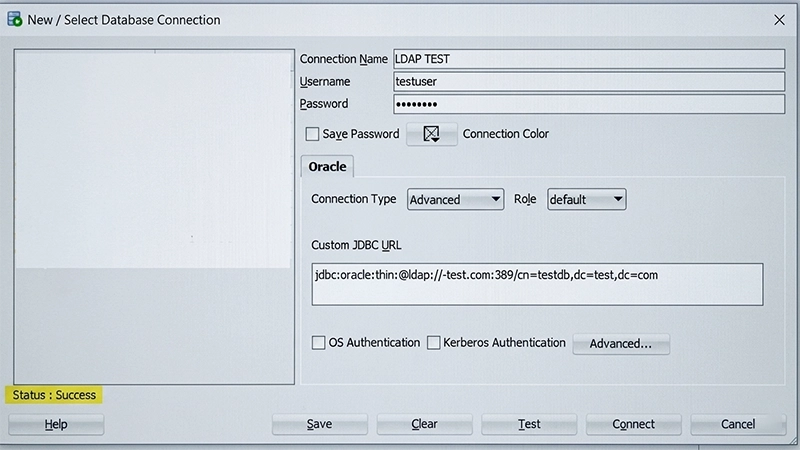
Example code to demonstrate Oracle LDAP authentication to validate the connection. Below is a small yet complete Java program that shows how to create an Oracle JDBC connection via LDAP name resolution. This sample program makes use of the DriverManager APIs along with a JDBC URL following the LDAP format. It loads the Oracle JDBC driver explicitly and then confirms the connection through a query on the Oracle dual table, which is one of the ways Oracle tests its connections.
package testdb.oracle.jdbc;
					import java.sql.Connection;
import java.sql.DriverManager;
import java.sql.ResultSet;
import java.sql.SQLException;
import java.util.Properties;

public class LDAPConn {

    public static void main(String[] args) throws SQLException {

        String url = "jdbc:oracle:thin:@ldap://<ip or hostname>:389/cn=testdb,dc=test,dc=com";

        Properties props = new Properties();

        props.setProperty("user", "testuser");

        props.setProperty("password", "ldappassword");

        DriverManager.registerDriver(new oracle.jdbc.OracleDriver());

        Connection conn = DriverManager.getConnection(url, props);

        if(!conn.isClosed()){

            System.out.println("<<<< LDAP auth connected successfully >>>>");

        }

        ResultSet res = conn.

                prepareCall(“SELECT 'Hello LDAP World” as txt from dual").

                executeQuery();

        res.next();

        System.out.println(res.getString("txt"));

    }

}
Conclusion
In this specific blog, it is all about making a connection with LDAP and setting up the Oracle service part of it together with the LDAP. Apart from this, also did the initial checks of the directory to get the best output as far as the connection is concerned. Configuration of Oracle LDAP (OID) for authentication is not an easy task to do since you need to understand the relationship between three things: Oracle LDAP Schema, Oracle LDAP Directory entries, and Oracle clients ldap.ora. When these three aspects are sorted out, a connection is made easy. What generally goes wrong while doing the configuration is the lack of OID schema LDIF files which leaves the LDAP server clueless as to how an Oracle Object class looks like. If done right, one can have a perfect connection with the appropriate jdbc connection string.